
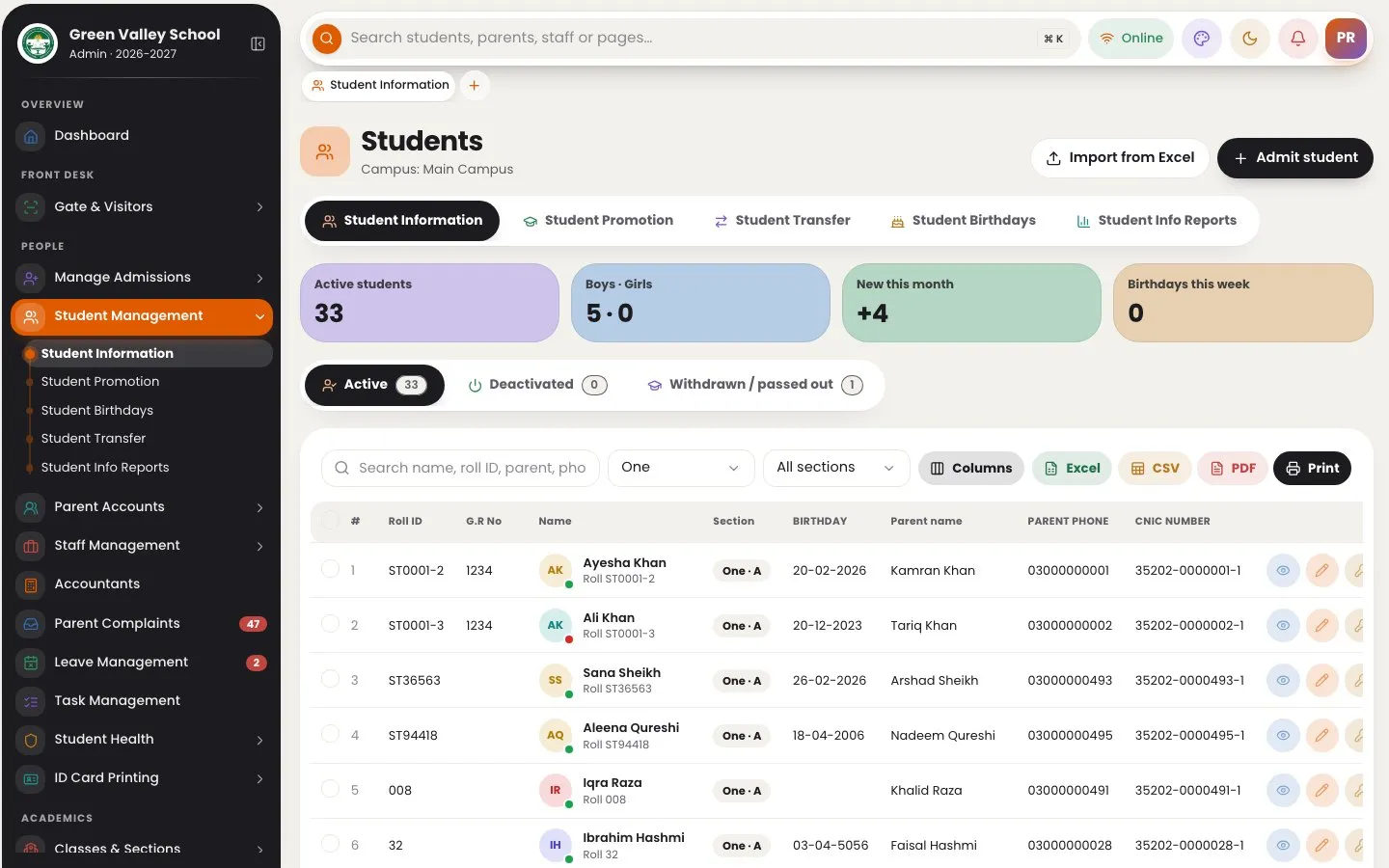

Excel is where most schools start, and it works — until the school grows. Moving to a cloud system is easier than it looks if you follow an order.
1. Tidy the sheets
One row per student with class, section, date of birth, guardian name and phone. Remove duplicates and fix phone numbers to include the country code.
2. Import students and families
EasySchoolin imports students from Excel and links siblings into families, so parents get one login for all their children. Our team can do the import for you.
3. Add staff and classes
Subjects, class teachers and timetables come next.
4. Bring opening fee balances
Enter what each family owes today, so the first invoices are correct.
5. Run one cycle side by side
For one month, generate fees and take attendance in the new system while keeping your old sheet as a check.
6. Train by role
The accountant learns fees, teachers learn attendance and marks, the principal learns the dashboard. Short video tutorials help each person learn only what they need.
7. Switch off the old way
Once totals match, retire the spreadsheets and let parents know about the app.
Frequently asked questions
Can you import our data for us?
Yes. Send us your Excel sheets and we import them.
Will we lose our old records?
No — keep your sheets as an archive; the new system starts with your current students and balances.